You've booked the flight, printed the boarding pass, packed the adapter. The part most travelers skip is the twenty minutes of device prep that decides whether your phone and laptop are simply tools — or a portable copy of your entire life sitting in a plastic tray at a border checkpoint. None of what follows is exotic. It's mostly settings you already have, arranged in the right order.
Start With a Five-Minute Inventory
Before you touch a single toggle, look at what's actually on your devices. Work email. Password manager. Banking app. Two years of photos that happen to include a scanned passport and a picture of your insurance card. A laptop with client contracts in a folder named "final final."
Ask one question: if a stranger scrolled through this for three minutes, what would I regret? That's your to-do list.
Then delete the easy stuff:
- Search your photos and files for passport, ID, ticket, visa, and boarding. Remove the scans you no longer need.
- Clear old screenshots — travel bookings, one-time codes, bank confirmations.
- Empty the Downloads folder on your laptop and move anything that matters to an encrypted location.
- Delete apps you'll reinstall at your destination anyway, especially those holding a stored card or work credentials.
Turn On Full-Disk Encryption — and Verify It Worked
Modern phones encrypt their storage by default once a passcode is set. On Android, check the encryption status in settings rather than assuming; on iPhone, the passcode is what makes the protection real. On laptops, FileVault on macOS and BitLocker or Device Encryption on Windows do the same job. If your Windows edition includes neither, an encrypted container for sensitive files is a reasonable fallback.
Encryption buys you protection at rest: a lost, stolen, or temporarily held device stays unreadable. It does not protect you from a person holding your unlocked phone with your thumb on the sensor. So pair it with:
- An alphanumeric passcode, not six digits.
- Auto-lock at one minute or immediately — not five.
- Biometrics off, if you'd rather not be in a position to have a finger pressed to a screen.
Encryption protects the device when it's off. Habit protects it when it's on.
Also confirm your backups aren't the weak link. An encrypted backup with a password only you know is fine. A backup that opens with the device passcode someone just watched you type is not.
Trim App Permissions Before You Go
Travel apps ask for a lot. A currency converter wants your contacts; a ride-hailing app wants location "always." Grant the minimum: location while using the app, no contacts, no microphone, no background access. It takes ten minutes and shrinks what any single overly curious or compromised app can see.
Then deal with the lock screen, which leaks more than people expect. Message previews, one-time codes, and email subject lines all land there. Set notifications to show only when unlocked, or hide their content entirely. If your bank app offers it, turn off previews for that app specifically.
Sign out, don't just close
If you won't need work email on the trip, sign out rather than leaving it running in the background. Sessions live on the server, not only on your phone, and signing out kills the token. Same with browsers: end the session, don't just close the tab.
Review Sessions and Recovery Options
Every major account — Google, Apple, Microsoft, your bank, your password manager — has a page listing devices and active sessions. Open each one before you fly and remove anything unfamiliar or unused. A tablet you sold two years ago shouldn't still hold a live session.
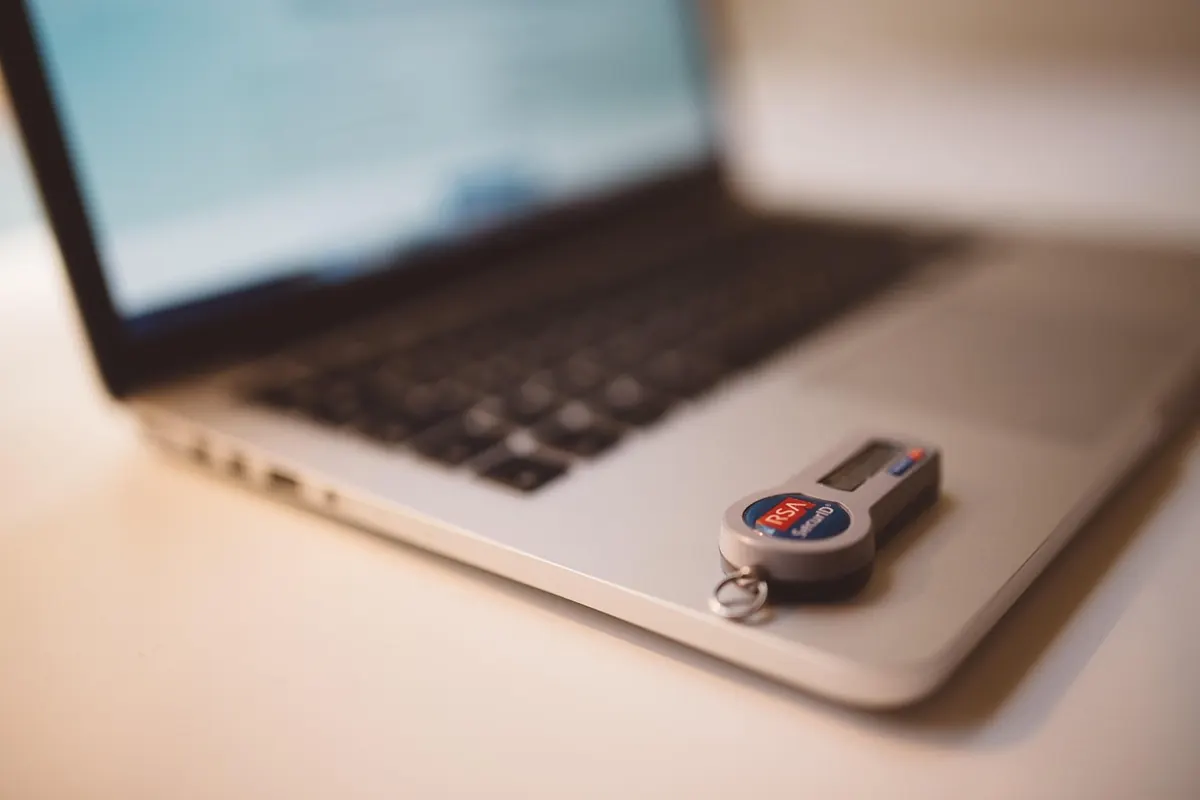
For two-factor authentication, an authenticator app or hardware security key is more dependable abroad than SMS, which depends on roaming, a working SIM, and a signal you may not have. Make sure you can get back into your accounts without your phone: print your backup codes and store them apart from your devices.
- Print recovery codes and pack them separately from your electronics.
- Add a recovery method that doesn't route through your primary number.
- Shorten session timeouts on webmail and cloud accounts.
- Keep passwords in a manager, never in a plaintext note or a photo of one.
Back Up Before You Leave Home
Back up everything you can't afford to lose while you're still on your own network, and confirm the job finished. The purpose isn't only disaster recovery. A current backup gives you the freedom to wipe a device if you have to, and it keeps a copy of your data on a drive that stays home.
Be deliberate about cloud sync during the trip. Automatic photo upload from a phone on hotel Wi-Fi is convenient, but it also means sensitive images leave the device. If you'd rather they didn't, turn off automatic upload and sync manually once you're back.
At the Border: Keep It Boring
Power your devices down before you reach the desk rather than letting them sit asleep. Rules vary widely by country, and border officers in many places have broad authority to inspect devices. Refusing can carry real consequences, including denied entry, and the specifics depend on your citizenship, your destination, and your status. Check current guidance for the country you're entering, and if you carry sensitive client or employer data, speak with a qualified lawyer before you travel. This isn't legal advice.
In the moment, keep it simple. Answer questions directly and don't volunteer detail. If you're asked to get into a device, how you respond is your call; if you do, do it yourself, keep it in your hands where possible, and lock it again the moment it's returned.
Two small habits help. Carry a power bank so a dead battery never forces a choice, and never plug into a random USB charging port — use your own wall charger or a data-blocking cable.
After You Land: Five Minutes of Cleanup
Once you're through, revisit what you changed. Sign back in to the accounts you logged out of, then scan the session lists for anything unfamiliar. If a password was typed on a shared or borrowed computer, change it. If a device was out of your hands or examined, treat it as untrustworthy: clear browser data, check for unknown profiles and certificates, and run updates before using it for anything sensitive. If you want to be thorough, restoring from the backup you made before leaving is the cleanest reset available.
The point isn't paranoia. It's arriving with the smallest useful surface, so a border stop, a lost bag, or a stolen phone stays an inconvenience instead of becoming a breach.
Photo: ClickerHappy / Pixabay